✏️ How to Create a Post Edit Page
The Post Edit Page allows users to update posts they previously submitted through the Post Creation Page.
This page is required for enabling the Edit Post functionality from the Posts Manager interface.
🛠️ How to Create the Page
Follow these steps to set up the Post Edit Page:
1. Add the Form Shortcode
Create a new blank page in WordPress and paste the following shortcode into the content area:
[easy_post_submission_form id=1]
Then save or publish the page.
After that, copy the URL of this page, you’ll need it in the next step.
2. Set the Edit Page URL in Plugin Settings
Go to your WordPress dashboard and open: Easy Post Submission → Post Manager tab → Submission Edit Post Form
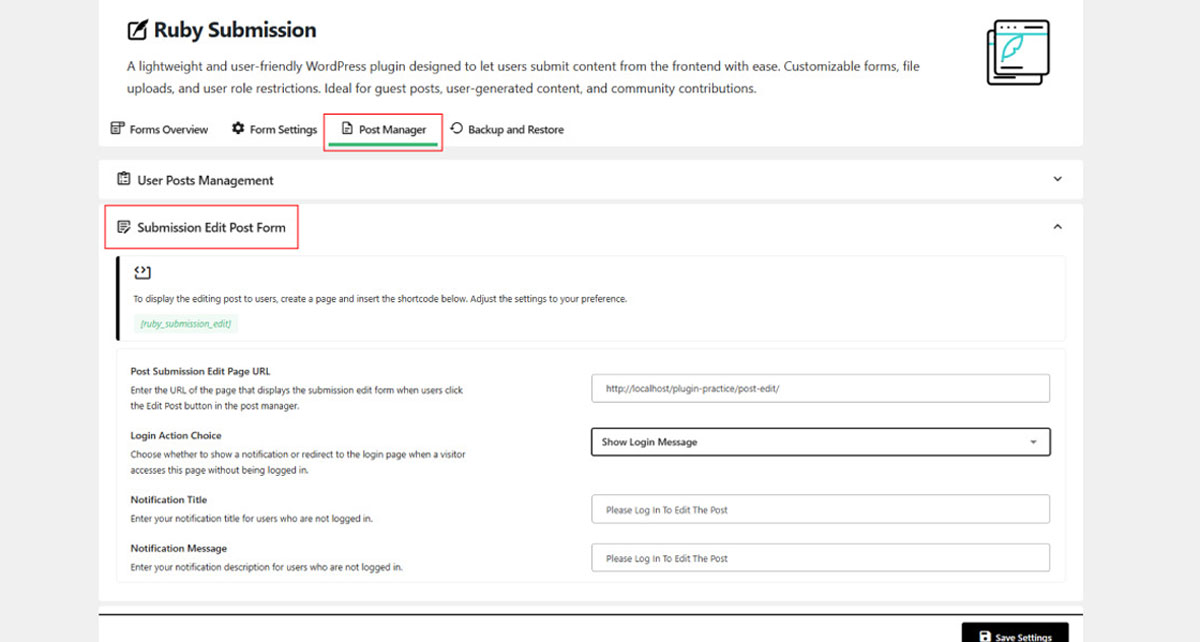
3. Paste the Page URL
In the Post Submission Edit Page URL field, paste the URL you copied earlier. Then click Save settings.
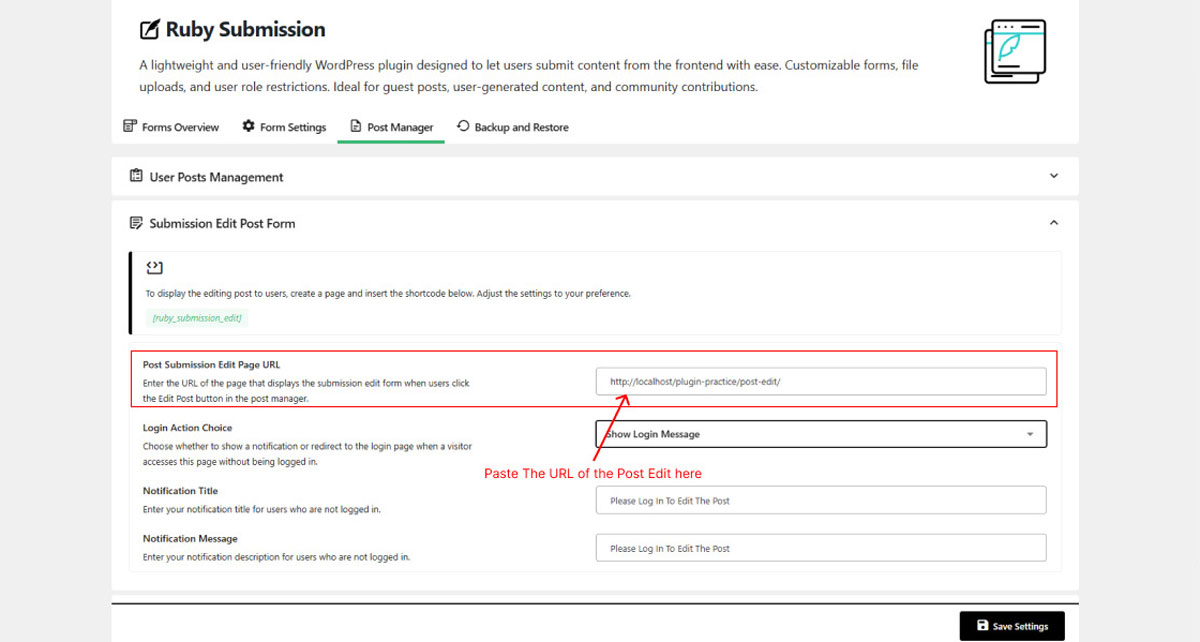
🧪 How to Use the Post Edit Feature
Follow these steps to edit a submitted post:
1. Open the Posts Manager Page
Go to the page where you placed the [easy_post_submission_manager] shortcode.
This is your Posts Manager Page.
2. Click "Edit Post"
Find the post you want to edit.
Click the Edit Post button (the left button under the Action column).
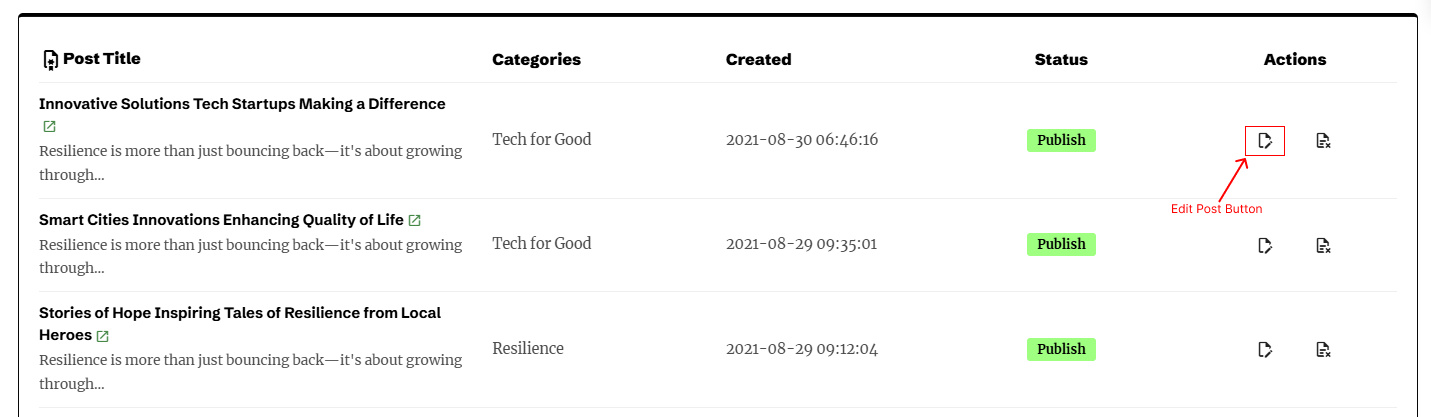
3. Update the Post
You’ll be redirected to the Post Edit Page, which loads the editing form.
Now you can update the content and save your changes.
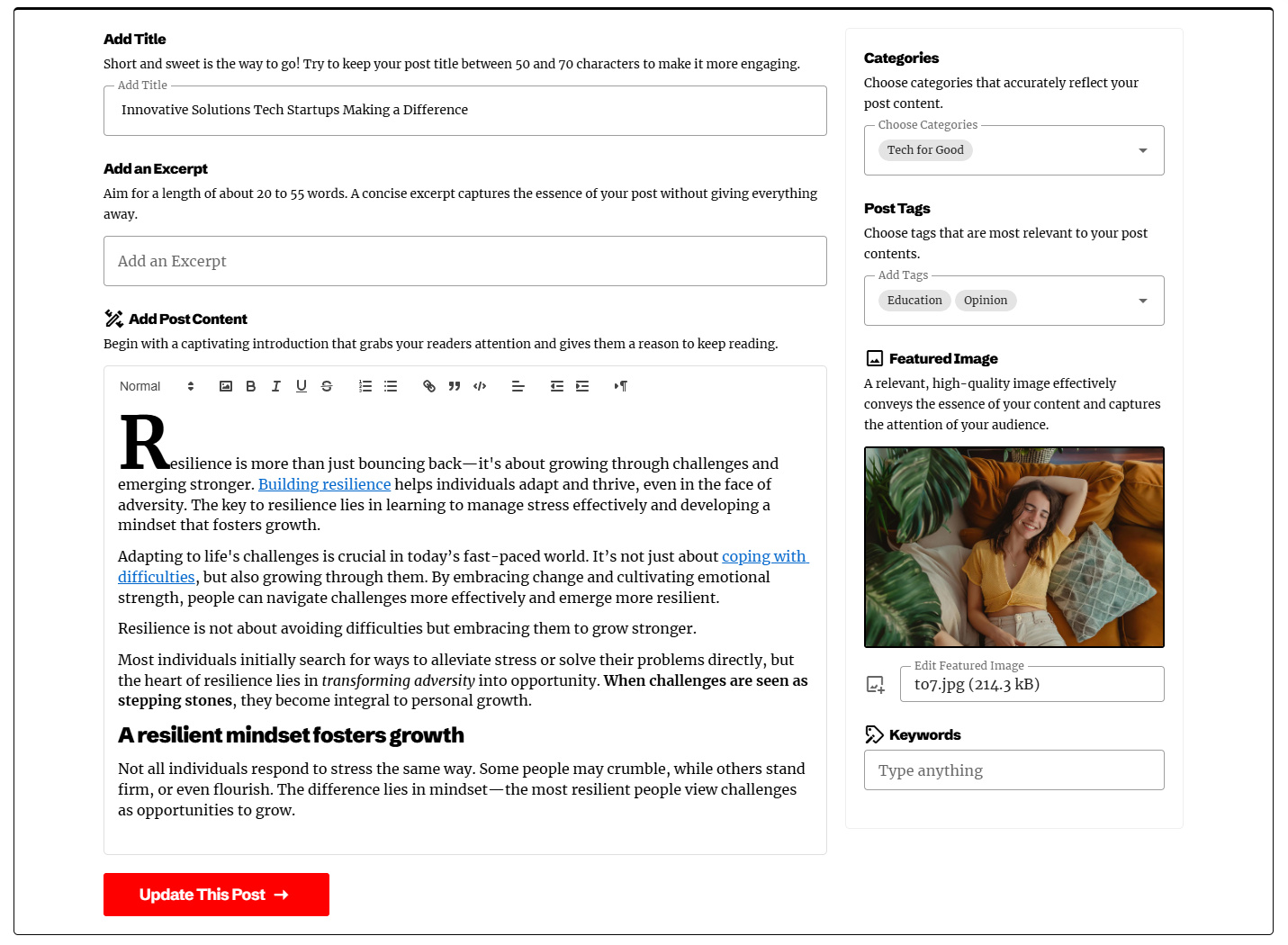
🛠 Troubleshooting
- Make sure the Post Edit Page URL is correctly saved in plugin settings
- Confirm the page contains the correct shortcode:
[easy_post_submission_form id=1] - Check that the form with ID
1exists in your Forms Overview - If redirected but nothing loads, try refreshing or disabling cache plugins
Need help? Check out the FAQs or Contact Support.