📂 How to Create a Post Manager Page
The Post Manager Page allows users to view and manage the posts they’ve submitted using the Post Creation Page.
This feature is part of the Easy Post Submission plugin and helps users keep track of their published or pending content.
🛠️ How to Create the Page
To set up a Post Manager Page:
- Create a new page in WordPress
- Paste the following shortcode into the content area:
[easy_post_submission_manager]
- Publish or update the page
- Visit the page, you should now see the Posts Manager interface
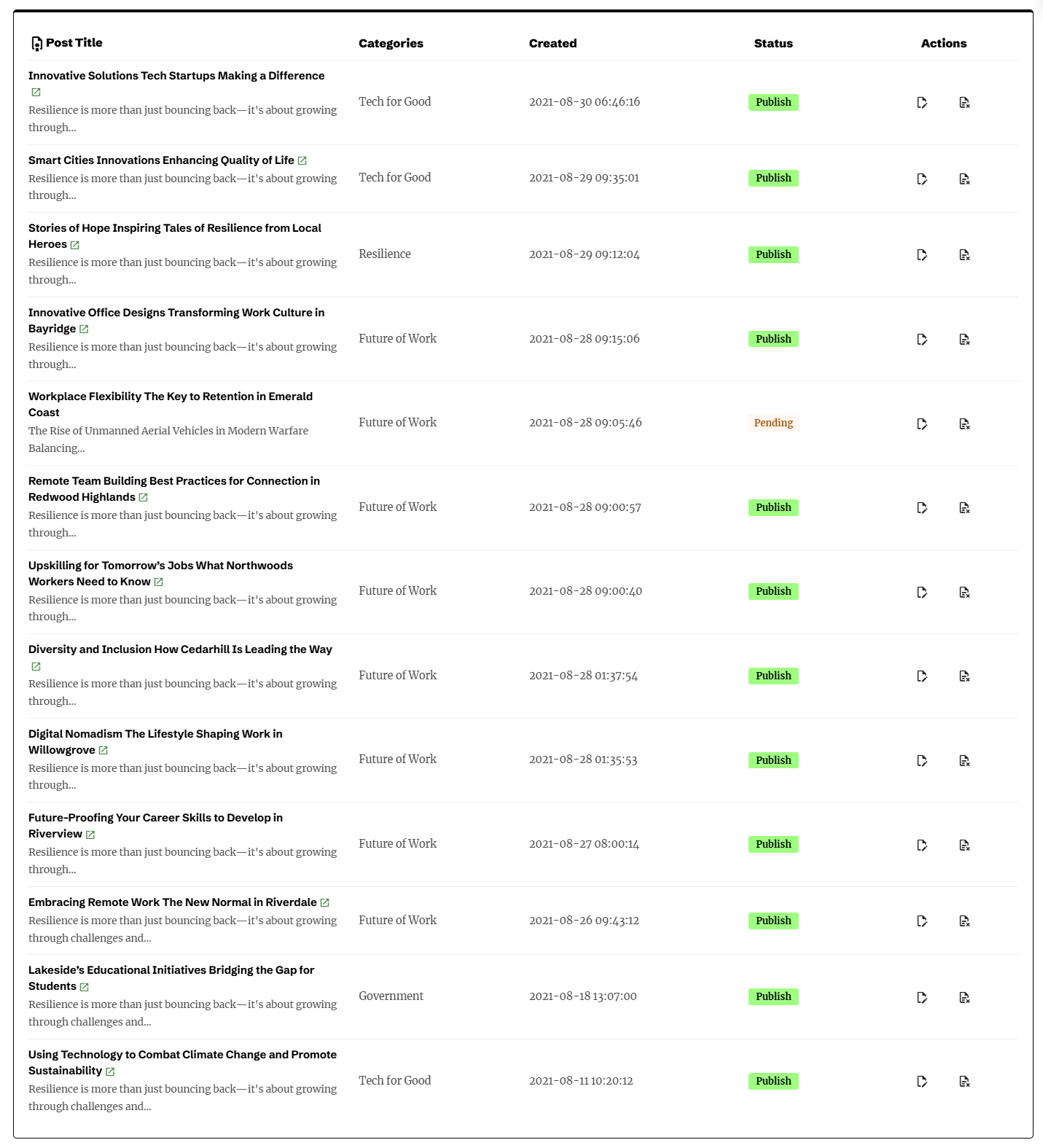
Users must be logged in to access the Posts Manager Page.
⚙️ Post Manager Settings
You can customize how this page behaves via the plugin’s settings.
To do this, go to Easy Post Submission → Post Manager tab → User Posts Management
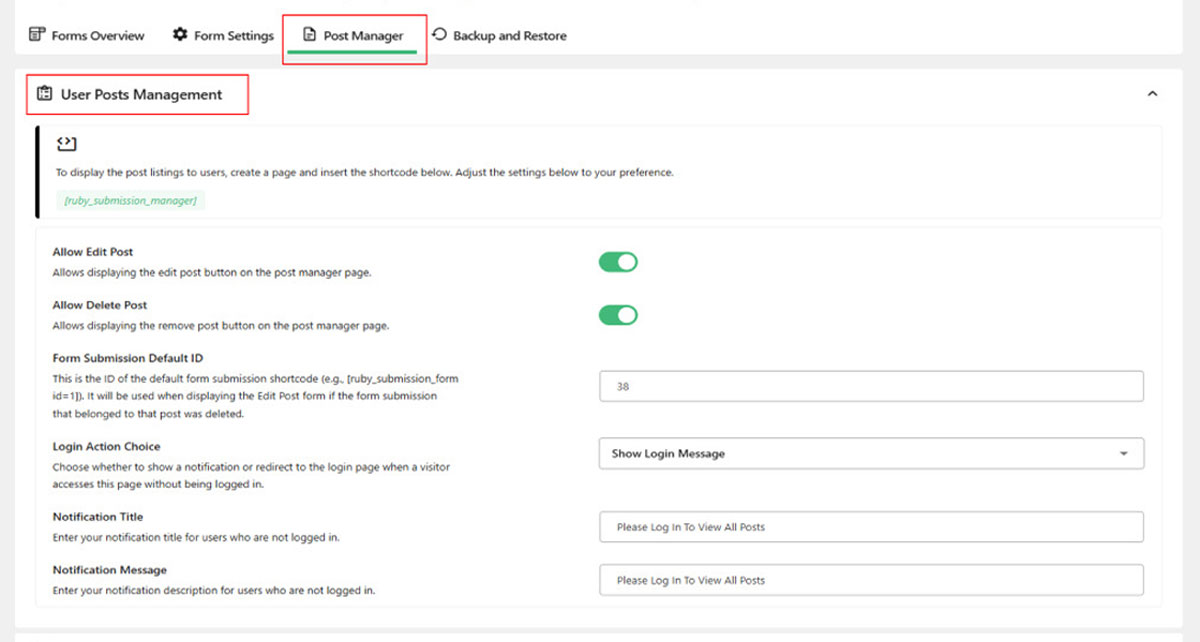
🔧 Settings Breakdown
Here is a detailed explanation of the available options:
✅ Allow Edit Post
Enable this to show an Edit button for each post listed on the page.
This allows users to open the form and modify their content.
🗑️ Allow Delete Post
Enable this to display a Delete button next to each post, allowing users to remove their own submissions.
🧾 Form Submission Default ID
Set a default form ID to be used for editing if the original form linked to a post is no longer available.
Example shortcode:
[easy_post_submission_form id=1]
This fallback ensures the Edit button still works properly even if the original form was deleted.
🔐 Login Actions Choice
Define what should happen when someone who isn’t logged in tries to access the Post Manager Page.
You can choose between two options:
1. Show Login Message
Shows a custom notification asking the user to log in.
You can customize:
- Notification Title – The heading of the alert message
- Notification Message – The content/body of the login prompt
2. Redirect to Login Page
Automatically sends unauthenticated users to the default WordPress login page.
✅ Summary of Settings
| Setting | Description |
|---|---|
| Allow Edit Post | Enable the Edit button for each post |
| Allow Delete Post | Enable the Delete button for each post |
| Form Submission Default ID | Fallback form used for editing if original form is deleted |
| Login Actions Choice | Choose behavior for unauthenticated users (message or redirect) |
| Notification Title | Title of the login message (if enabled) |
| Notification Message | Content of the login message (if enabled) |
📌 What's Next?
Once your Post Manager Page is live and configured, your users will be able to:
- View all of their submitted posts
- Edit or delete their content
- Interact with the post list securely while logged in
Want to learn how to backup the submission form itself? Continue to Backup Data Settings »
🛠 Troubleshooting
- Make sure users are logged in because the page is not accessible to guests
- Check if Edit and Delete buttons are enabled in plugin settings
- Confirm the page uses the correct shortcode:
[easy_post_submission_manager] - Refresh the page or clear browser cache if changes don’t show
Need help? Check out the FAQs or Contact Support.