⚙️ Settings Overview
The Easy Post Submission plugin provides a wide range of customizable settings to help you create, and secure user-submitted posts effectively. This page gives you a high-level overview of all available settings categories.
Each group of settings has its own configuration screen and is documented separately in its own section.
🔧 How to Access Form Settings
To begin customizing a submission form:
- Go to your WordPress dashboard
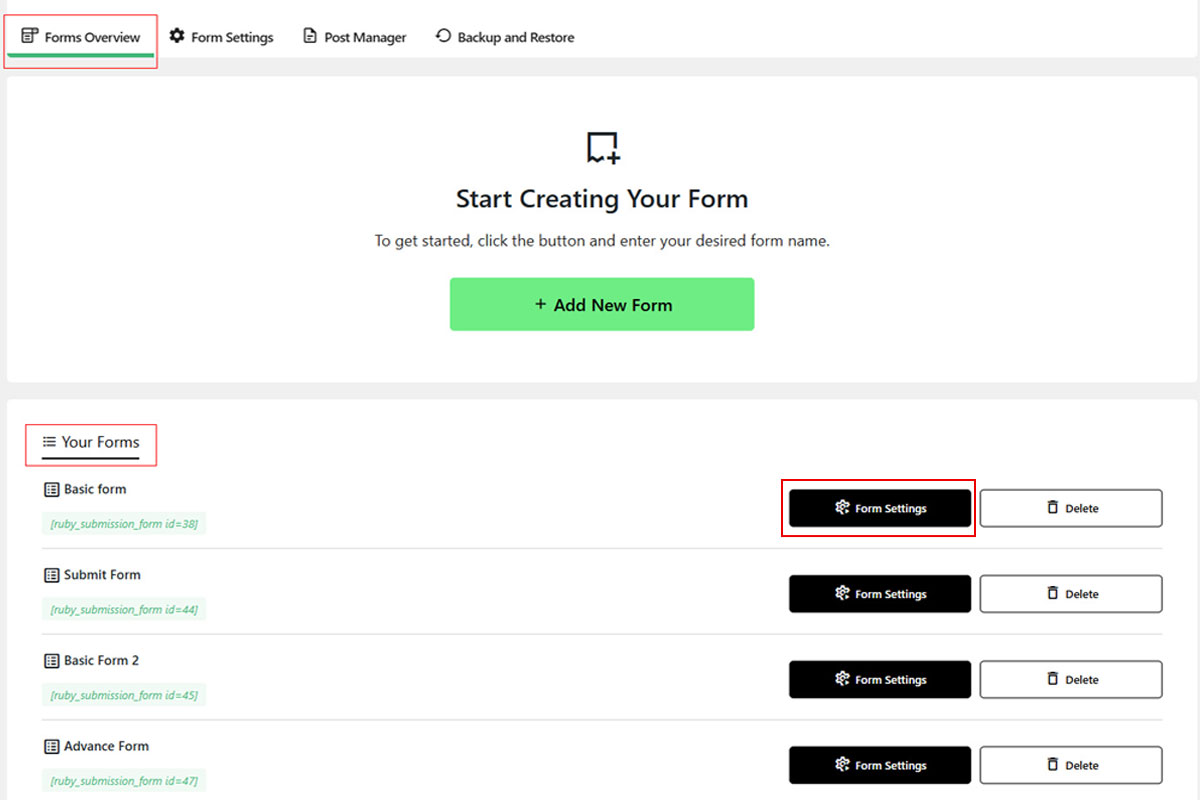
- Navigate to Easy Post Submission → Forms Overview
- Scroll down to the Your Forms section
- Click the Form Settings button next to any form you want to edit
🗂 Available Settings Sections
| Settings Category | Description |
|---|---|
| General Settings | Control post status, success/error messages, redirect, and layout |
| User Login Settings | Define guest access, login messages, and author handling |
| Form Fields Settings | Choose which fields appear in the post submission form and their behavior |
| Security Settings | Enable anti-spam features like challenge questions and Google reCAPTCHA |
| Email Notifications | Configure email alerts for admins and users on form-related events |
💾 Save Your Changes
After editing any settings, don’t forget to click the Save Settings button
(located at the bottom-right of the form settings page).
🛠 Troubleshooting
- Settings not saving? Make sure WordPress isn’t blocking options saving and that no security plugin interferes
- Changes not visible? Try clearing your site or browser cache
- Form missing options? Confirm that you are editing the correct form with the latest plugin version
Need help? Check out the FAQs or Contact Support.