🔐 User Login Settings
The User Login Settings section controls who can submit posts using the form — logged-in users, guests, or both.
You can also configure how the system should behave when login is required.
📍 Accessing This Setting
- Go to your WordPress dashboard
- Navigate to Easy Post Submission → Forms Overview
- Click Form Settings for the form you want to configure
- Scroll to the User Login section

🔄 Author Access
This option determines who is allowed to create posts:
- Allow Guest (default): Anyone can submit posts, no login required
- Only Logged User: Only logged-in users can submit posts
If “Allow Guest” is selected
You’ll see:
👤 Assign Author
- Assign a specific user account as the post author for guest submissions
- Posts created by guests will be attributed to this user
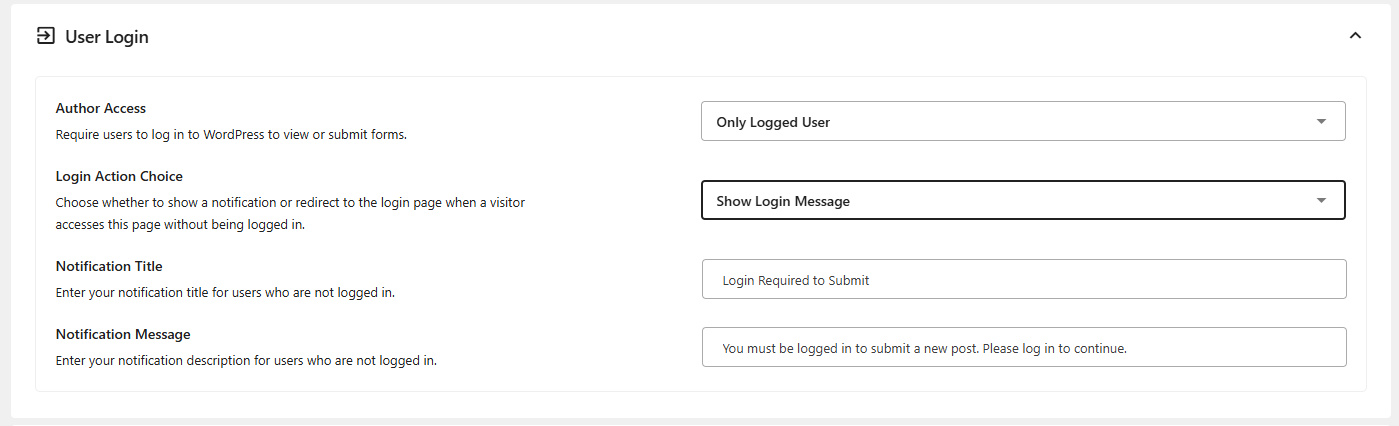
If “Only Logged User” is selected
You’ll see:
🔁 Login Action Choice
Controls what happens when a non-logged-in user tries to access the submission page:
-
Show Login Message
Displays a message asking the user to log in.
Additional fields:- Notification Title
Example:Login Required - Notification Message
Example:Please log in to create a post.
- Notification Title
- Redirect to Login Page
Automatically redirects users to the default WordPress login page
caution
Click the Save Settings button at the bottom right of the page to apply any changes.
🛠 Troubleshooting
- Guests can't submit posts? Make sure Allow Guest is selected
- Logged-out users see a blank form? Use Show Login Message instead of redirect
- Posts show no author? Make sure to set Assign Author when allowing guest submissions
Need help? Check out the FAQs or Contact Support.