🔒 Security Settings
The Security Settings section helps protect your submission forms from spam or bot entries.
You can enable either a Challenge Question or Google reCAPTCHA v2 for added security.
📍 Accessing This Setting
- Go to your WordPress dashboard
- Navigate to Easy Post Submission → Forms Overview
- Click Form Settings for the form you want to configure
- Scroll to the Security Fields section
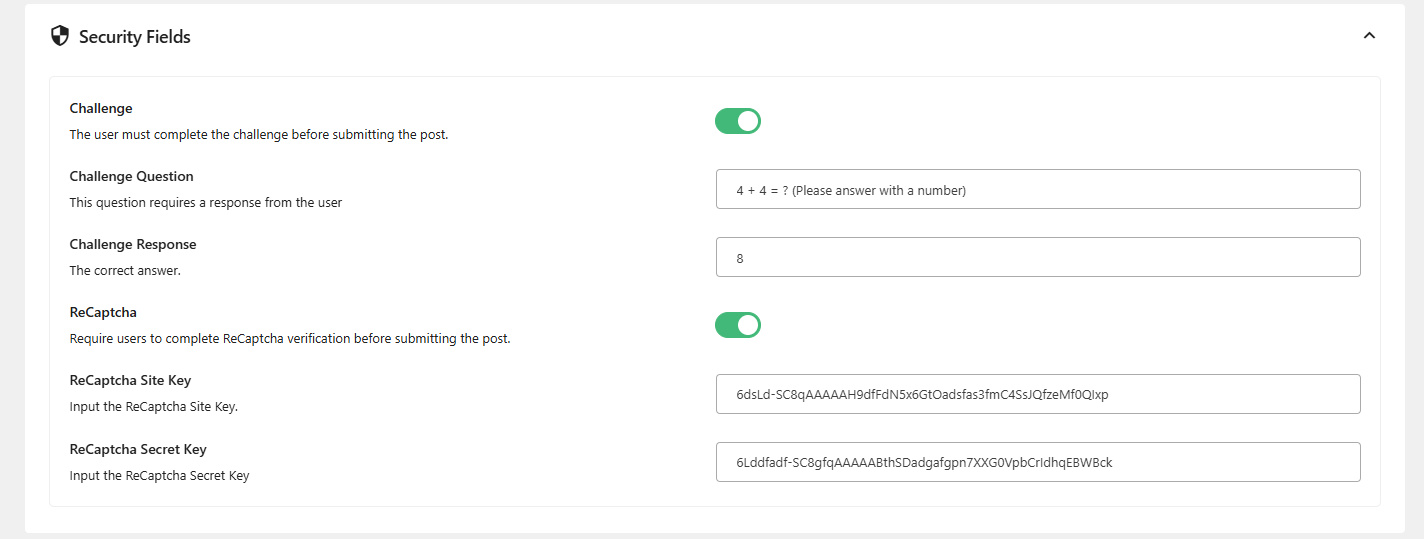
🧠 Challenge
Enable a simple manual challenge (like a security question) to filter spam submissions.
Users must enter the correct answer to submit the form.
Options:
| Option | Description |
|---|---|
| Enable/Disable | Toggle to activate or deactivate the challenge |
| Challenge Question | A question shown on the form (e.g., “What is 2 + 2?”) |
| Challenge Response | The correct answer to the question (e.g., “4”) |
🧿 Google reCAPTCHA v2
Add a reCAPTCHA widget to prevent bots from submitting the form.
✅ Make sure to use reCAPTCHA version 2, not v3.
📌 If these fields are blank, reCAPTCHA will not appear on the form.
Required fields:
| Field | Description |
|---|---|
| ReCAPTCHA Site Key | Public key from Google reCAPTCHA admin panel |
| ReCAPTCHA Secret Key | Private key used to validate the reCAPTCHA server-side |
🔑 How to Get Google reCAPTCHA v2 Keys
Follow these steps to create a new reCAPTCHA v2 and get your Site Key & Secret Key:
-
Go to the official Google reCAPTCHA admin panel:
https://www.google.com/recaptcha/admin -
Click the “+” (Create) button to register a new site.
-
Fill out the form:
- Label: Choose any name (e.g., "My Form Protection")
- reCAPTCHA type: Select reCAPTCHA v2 → "I'm not a robot" Checkbox
- Domains: Enter your website domain (e.g.,
example.com) - Accept the reCAPTCHA Terms of Service
-
Click Submit
-
After creating, you will receive:
- ✅ Site Key
- ✅ Secret Key
Copy these keys into your plugin settings to enable reCAPTCHA on your form.
📌 Notes
- The Site Key is inserted into the front-end form to render the checkbox.
- The Secret Key is used server-side to verify the response with Google’s API.
- Make sure your domain matches exactly as entered in the Google dashboard.
- You can generate multiple keys for different projects or domains if needed.
Click the Save Settings button at the bottom right of the page to apply any changes.
🛠 Troubleshooting
- reCAPTCHA not displaying? Make sure both keys are valid and v2 is selected
- Challenge not working? Ensure question and answer are both filled
- Submissions blocked? Check if reCAPTCHA is loading properly and not blocked by browser plugins
Need help? Check out the FAQs or Contact Support.