📝 Form Fields Settings
The Form Fields Settings section allows you to control which input fields are shown on the submission form, and whether they are required, optional, or disabled.
📍 Accessing This Setting
- Go to your WordPress dashboard
- Navigate to Easy Post Submission → Forms Overview
- Click Form Settings for the form you want to configure
- Scroll to the Form Fields section
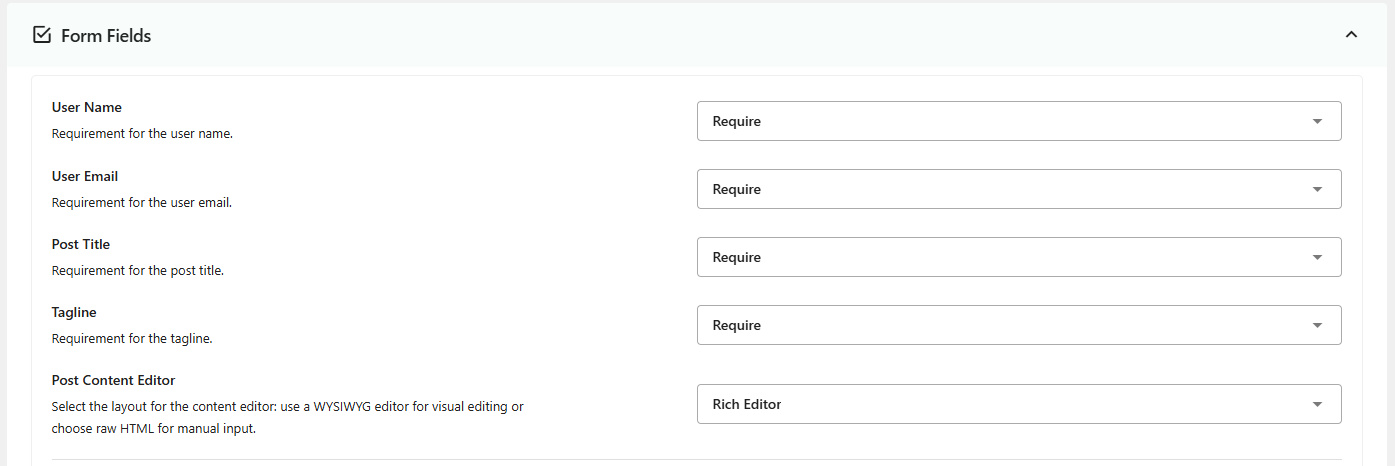
🔽 Available Fields & Options
Each field in the form has three display modes:
| Option | Description |
|---|---|
| Require | Field is shown and must be filled to submit the post |
| Optional | Field is shown but not mandatory |
| Disable | Field is hidden and not used |
👤 User Name
- Shown only if the user is a guest
- Logged-in users will have their username used automatically
📧 User Email
- Like User Name, only appears for guest users
📝 Post Title
- Allows the user to enter a title for the post
💬 Tagline
- A short description or excerpt field for the post
✍️ Post Content Editor
Choose the type of content editor:
- Rich Editor (WYSIWYG): recommended for most users
- Raw HTML: for advanced users writing HTML directly
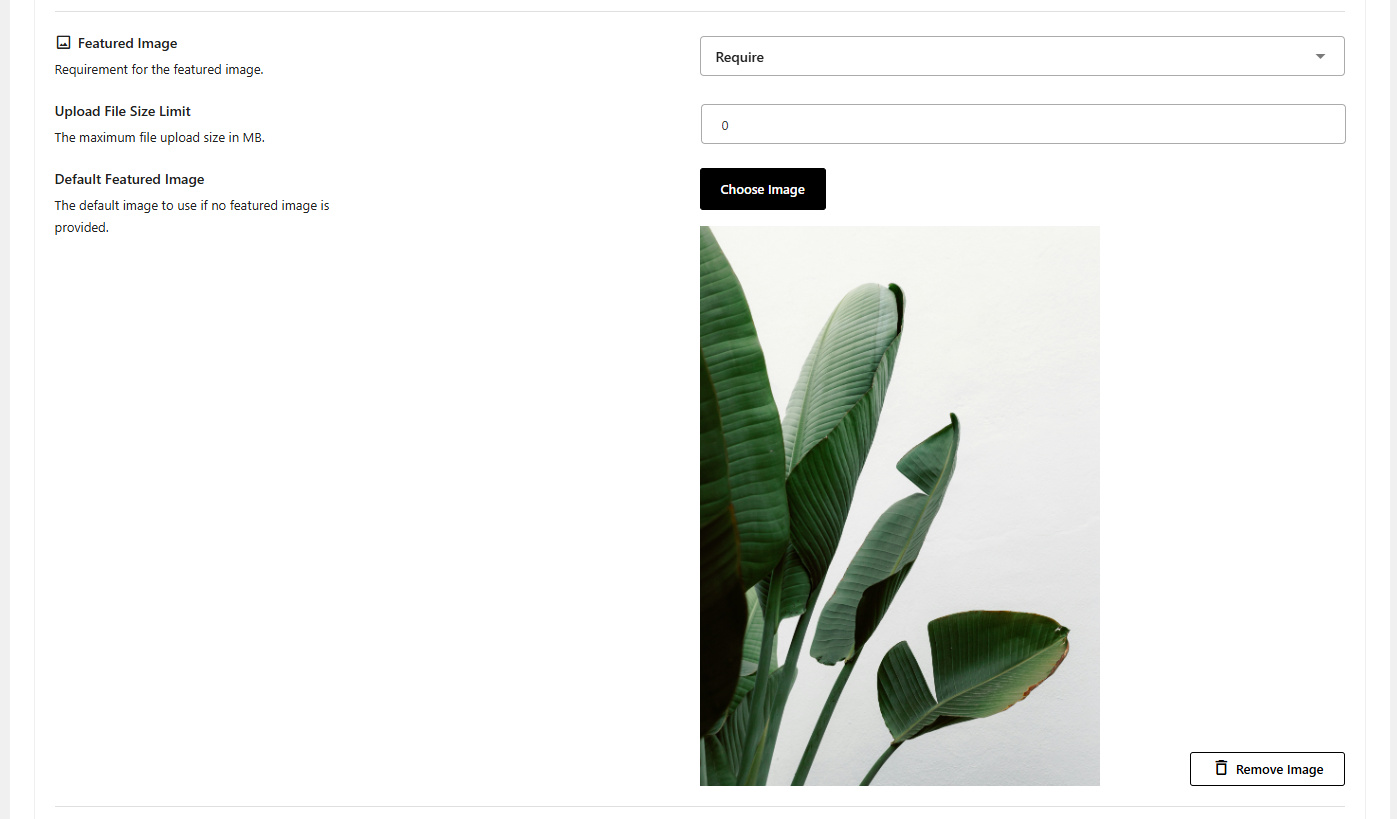
🖼 Featured Image
Allow users to upload a featured image:
| Option | Description |
|---|---|
| Require | Must include an image |
| Optional | Image can be added |
| Disable | Image upload not available |
📦 Upload File Size Limit
Set the maximum file size (in MB) for featured image uploads.
Set to 0 for unlimited.
🖼 Default Featured Image
If no image is uploaded, this default image will be used automatically.
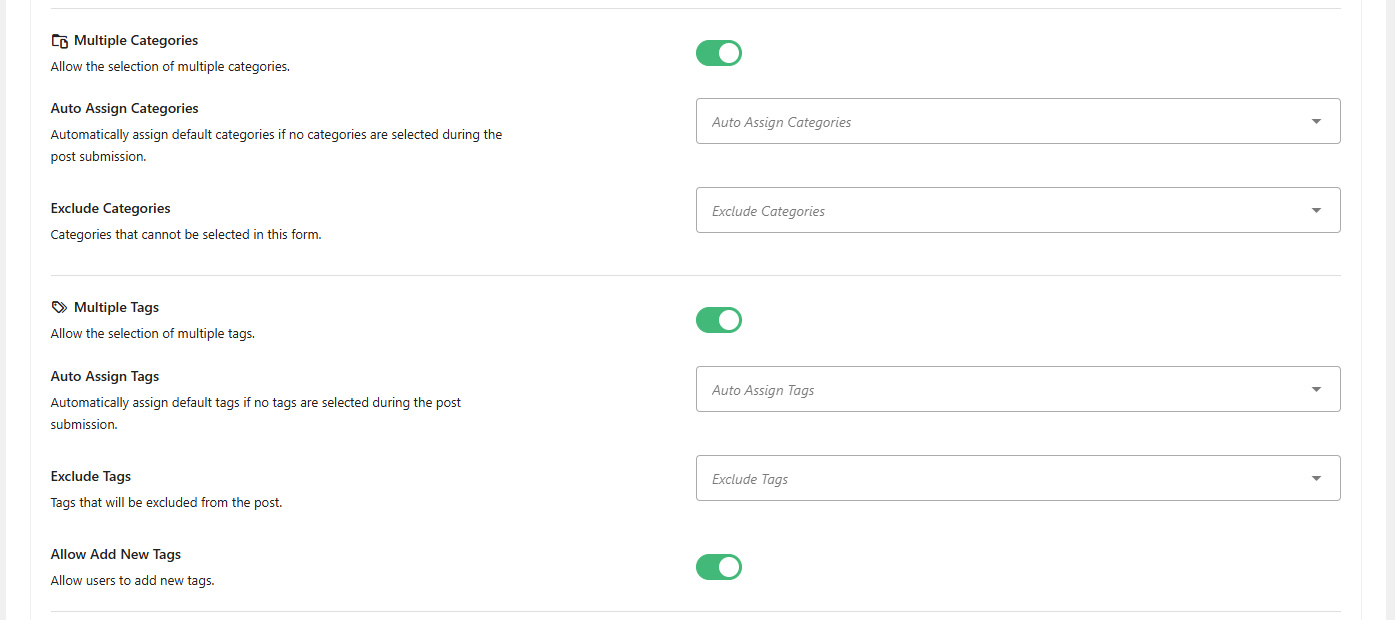
🗂 Multiple Categories
Allow users to select more than one category for their post.
✅ Auto Assign Categories
Automatically assign categories if none are selected.
🚫 Exclude Categories
Hide specific categories from the category selection list.
🏷 Multiple Tags
Enable multiple tag selection for the post.
🏷 Auto Assign Tags
Automatically apply specific tags if none are selected.
🚫 Exclude Tags
Remove certain tags from the available tag list.
➕ Allow Add New Tags
Let users create new tags directly from the submission form.
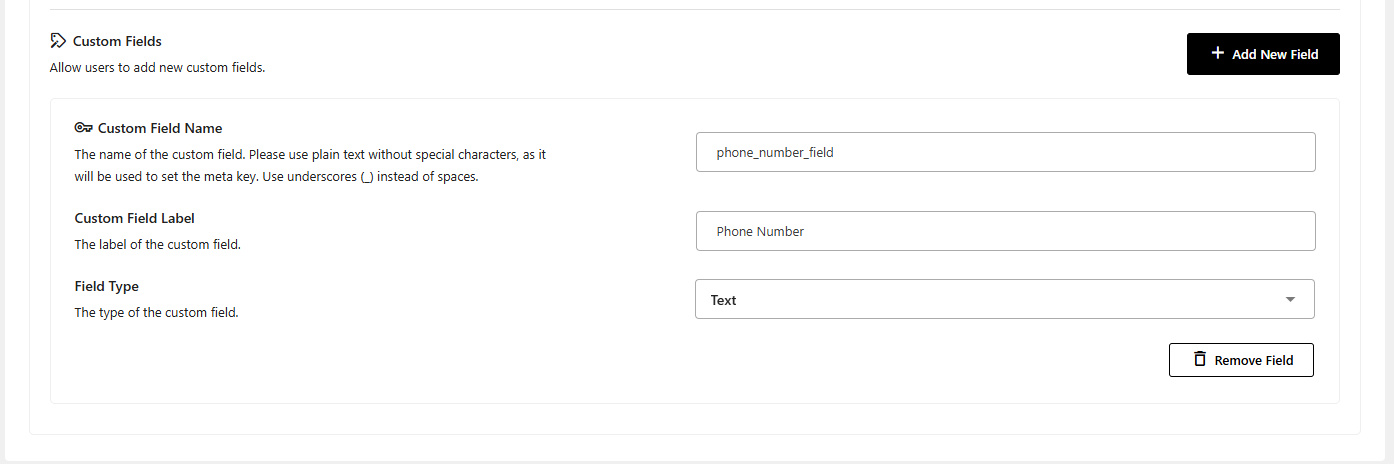
🧩 Custom Fields
Add extra custom fields to collect additional data.
To create a field:
- Click Add New Field
- Fill in the following:
| Field | Description |
|---|---|
| Custom Field Name | Used in the database. Use _ instead of spaces |
| Custom Field Label | The label shown in the submission form |
| Field Type | Choose between Text or Textarea |
Click the Save Settings button at the bottom right of the page to apply any changes.
🛠 Troubleshooting
- Field not showing? Make sure it's not set to
Disable - Fields still visible for logged-in users? Username/Email only show for guests
- File upload not working? Check WordPress file upload limits or security plugins
Need help? Check out the FAQs or Contact Support.