⚙️ General Settings
The General Settings section lets you control the overall of your submission form, such as post status, redirection, and form layout.
📍 Accessing This Setting
- Go to your WordPress dashboard
- Navigate to Easy Post Submission → Forms Overview
- Click the Form Settings button next to the form you want to edit
- Scroll to the General section
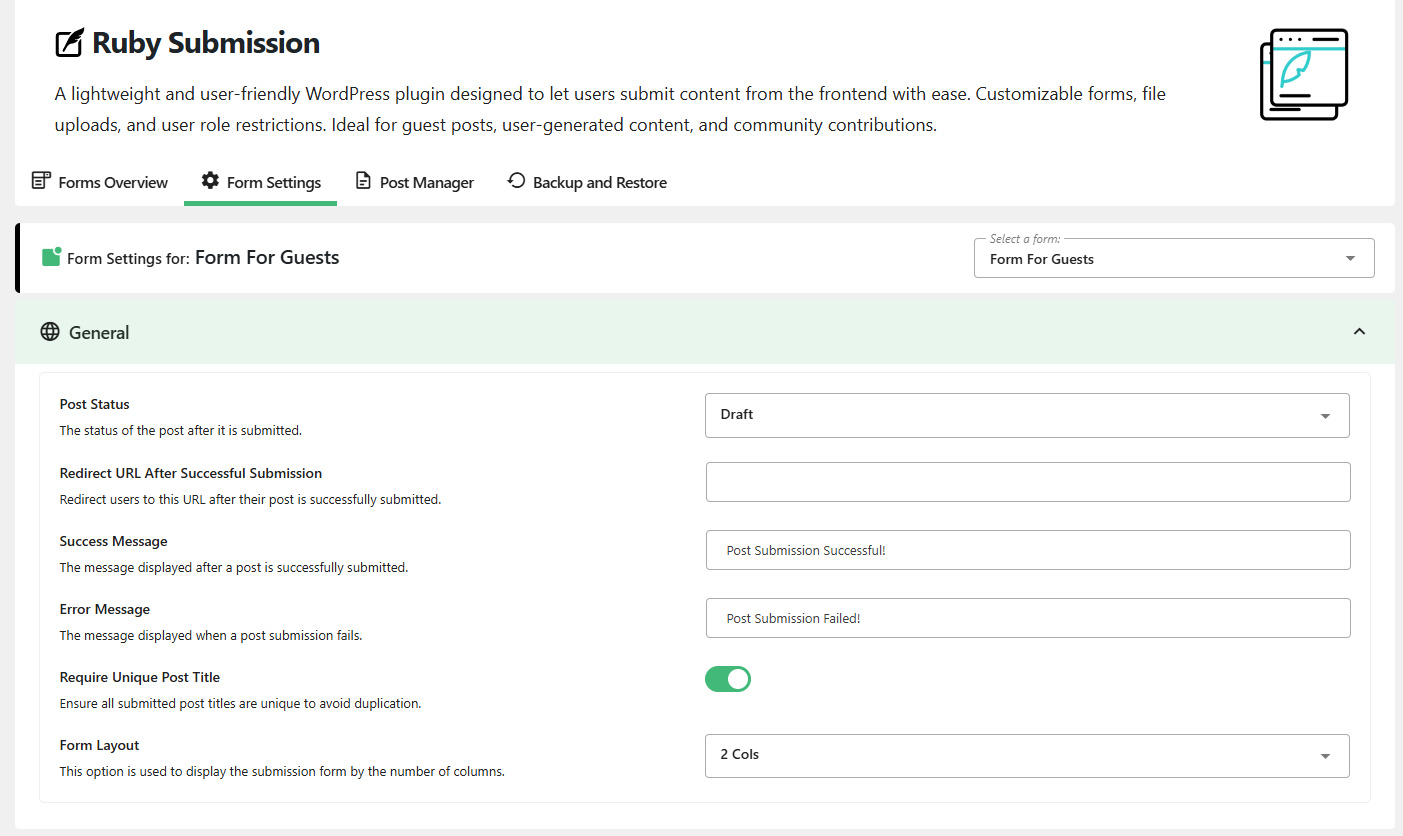
🔽 Available Options
📌 Post Status
Choose what status the post should have after submission:
- Draft (default): Saves the post as a draft
- Pending Review: Marks the post for admin review
- Publish: Instantly publishes the post
🔗 Redirect URL After Submission
Optional. Add a custom URL to redirect users after submitting the form.
- Leave it blank to keep the user on the same page
- You can redirect to a “Thank You” or confirmation page
✅ Success Message
Custom message shown when a post is submitted successfully.
Example:
Your post has been submitted successfully!
❌ Error Message
Message displayed if the post submission fails due to an error.
Example:
Oops! Something went wrong. Please try again.
🧠 Require Unique Post Title
Toggle this option if you want to prevent duplicate post titles from being submitted.
🧱 Form Layout
Choose how the fields are displayed on the submission form:
- 1 Column: All fields are stacked vertically
- 2 Columns: Fields are displayed side by side in two columns (better for desktop UI)
caution
Click the Save Settings button at the bottom right of the page to apply any changes.
🛠 Troubleshooting
- Post not publishing? Double-check that you selected Publish as the Post Status
- Redirect not working? Ensure you entered a valid URL starting with
http://orhttps:// - Layout looks broken? Check your theme or custom CSS — some styles may override the form layout
Need help? Check out the FAQs or Contact Support.