📧 Email Settings
The Email Settings section allows you to send email notifications to admins and users based on post-related events:
submission, publication, or deletion.
📍 Accessing This Setting
- Go to your WordPress dashboard
- Navigate to Easy Post Submission → Forms Overview
- Click Form Settings for the form you want to configure
- Scroll to the Emails section
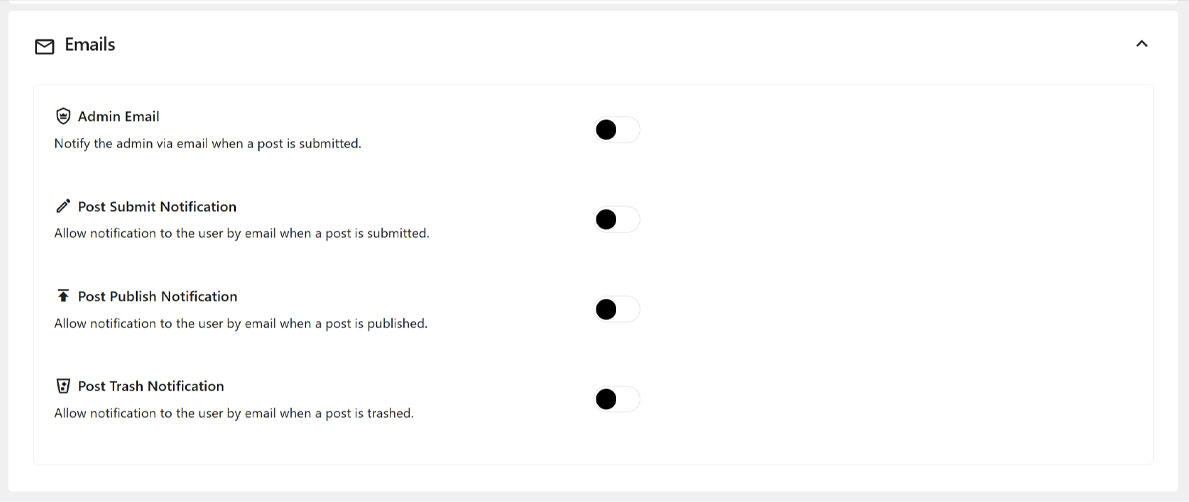
✉️ Admin Email Notification
Send an email to the admin whenever a new post is submitted.
Fields:
| Field | Description |
|---|---|
| Admin Email Address | If left blank, the default WordPress admin email will be used |
| Subject | Email subject line (e.g., New Post Submitted) |
| Email Title | Title shown at the top of the email body |
| Message | Content of the email message (HTML supported) |
📨 Post Submit Notification
Allows sending email notifications to the author when their post has just been submitted. There are three fields: Subject, Email Title, and Message, which function similarly to the Admin Email section to assist in composing the email.
📢 Post Publish Notification
Post Publish Notification: Allows sending email notifications to the author when their post has just been published. The three fields: Subject, Email Title, and Message also function similarly to the Admin Email section to assist in composing the email.
🗑 Post Trash Notification
Post Trash Notification: Allows sending email notifications to the author when their post has just been deleted. The three fields: Subject, Email Title, and Message have similar functions to the Admin Email section to assist in composing the email.
Click the Save Settings button at the bottom right of the page to apply any changes.
🛠 Troubleshooting
- Emails not received? Check your spam folder or SMTP plugin configuration
- Still not working? Use a plugin like WP Mail SMTP to test and fix delivery issues
- Placeholders not replaced? Make sure your message includes valid shortcodes
Need help? Check out the FAQs or Contact Support.